Research and analysis. Editorial standards.
Quick answer
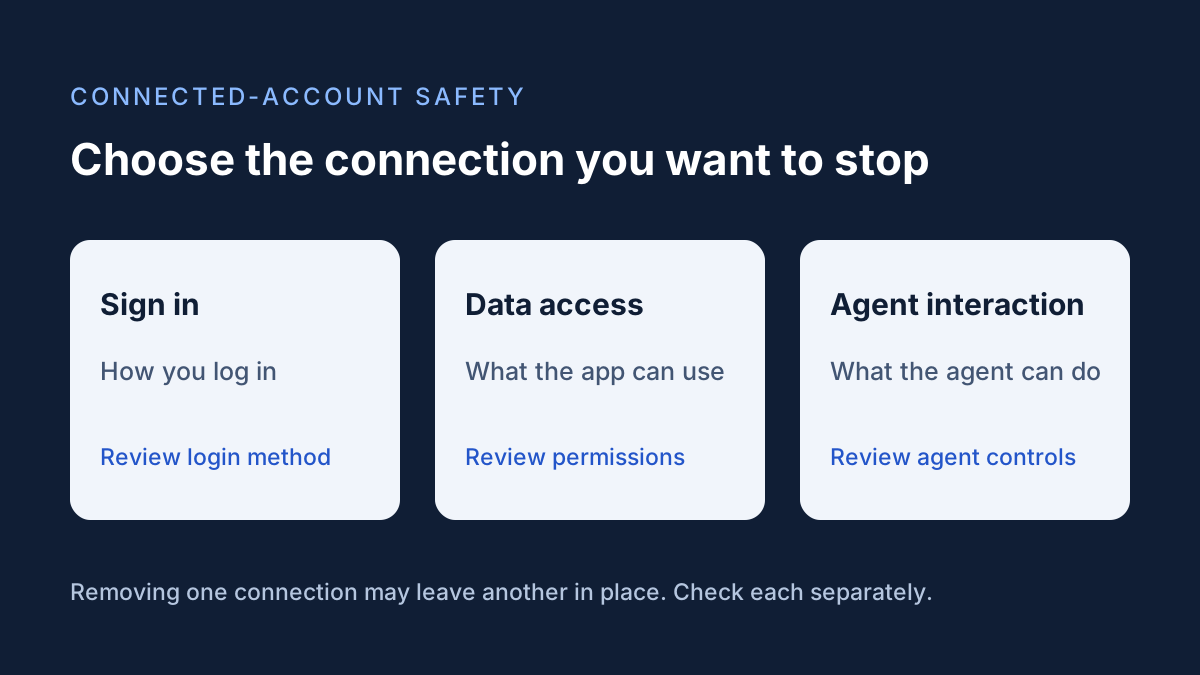
Documentation-based guide. Official instructions checked October 9, 2026. We have not tested these controls with a disposable connected app. The illustration explains connection types; it is not a product screenshot.
Review the connection in the account that supplies the data. Choose the control that matches your goal: stop an agent using an app, revoke the app's account-data access, or remove a sign-in connection. For a workplace account, ask your administrator about permissions you cannot change. Record which connection you removed and check the result before assuming the tool is disconnected.
Before changing anything
Write down the app name, the account it connects to and the workflow that depends on it. If this is a shared business integration, tell the person responsible for that workflow before making a change. Avoid capturing email addresses, document names or tokens in screenshots you intend to share publicly.
Decide what you want to stop. A tool that signs you in, a tool that reads your calendar and an agent that operates another app represent different relationships. A single product can have more than one relationship with your account.
Google: choose the correct connection
Open Google's linked-apps page in the intended account.
To withdraw an app's access to Google data, choose Access to your Google Account, select the app, open See details, review its scope and choose Remove access, then confirm.
For agent permissions, use the Agent access filter, select the app and locate Agents that interact with that app. Choose its Stop using control and confirm. Google says this stops the agent interaction without removing the underlying app link.
Stop using Sign in with Google changes the sign-in relationship. It does not delete the app's stored data. Select the connection type deliberately rather than treating every disconnect control as equivalent.
Source: Google Account Help: manage linked apps and agent permissions, checked October 9, 2026. Interface labels can differ by account, language and availability.
Microsoft work or school: distinguish user and administrator consent
Open My Apps using your work or school account. Hover over the application, choose its … menu and select Manage your application.
The permissions window distinguishes your consent from administrator consent. Use Revoke Permissions for permissions you granted. Microsoft says users cannot revoke permissions granted by the administrator on their behalf. Contact your organization's administrator for those permissions or if a dependent feature stops working.
These instructions apply to the work or school My Apps portal. They are not instructions for a personal Microsoft account or Windows device permissions.
Source: Microsoft Support: edit or revoke application permissions, checked October 9, 2026.
Check the result using harmless data
Record the control used and the time of the change. Revisit the connection list and inspect its current state. Then, if appropriate for the product, attempt a new read-only task using a disposable test file with no personal or company information. Do not approve a new connection during this check.
If the tool displays an old answer, establish whether that answer came from a new retrieval or information already visible in the conversation. An old summary alone is weak evidence of continuing account access. Equally, one failed task does not establish that every possible connection has been removed. Check other accounts and integration surfaces separately.
Disconnecting and deleting are separate jobs
Treat access removal and a request to delete previously shared information as separate checklist items. Consult the AI provider's current retention and deletion documentation rather than promising that disconnecting erases all copies. Save its response to any deletion request alongside your connection audit.
Related reading
Related articles

What Not to Share With AI: A Practical Data Privacy Checklist
What not to share with AI assistants: review credentials, personal information and confidential work before uploading or pasting your data.

AI Agent Permissions Checklist: What to Check Before Connecting
Use this AI agent permissions checklist to review file access, sharing destinations and how to stop or revoke a connected workflow.

Google Gemini Agent Is Here: What It Does, How It Works and the Security Risks to Know
Google’s new workplace agent puts connected business systems in reach of a prompt. Here is what is confirmed, what remains unclear, and how to evaluate the risks.
